
Octane AIUpdated 8 months ago
Octane AI helps DTC brands turn shoppers into converted sales with AI-powered quizzes & smart funnels. Collect zero-party data, build rich customer profiles, & deliver personalized product recommendations automatically. Give your shoppers a guided experience by recommending the right product at the right moment, while reducing returns. Uncover opportunities & trends; optimize conversions with built-in A/B testing & performance tracking.
Integration benefits
- Personalized Support at Scale → Give your team instant access to each shopper’s quiz data — so every interaction feels tailored, relevant, and human.
- Faster, Smarter Resolutions → See quiz answers and product recommendations directly in Gorgias, helping agents resolve tickets quickly and with better context.
- Turn Conversations into Conversions → Empower support to recommend the right products and drive revenue using zero-party data from Octane AI.
Steps
- Log in to the app and install it on your Shopify store
- From your Gorgias account, head to Settings → App Store → All Apps
- Find Octane AI on the list
- After selecting the app, click on the Connect App button
- In Octane, add your Gorgias subdomain, connect it, and authorize the app:
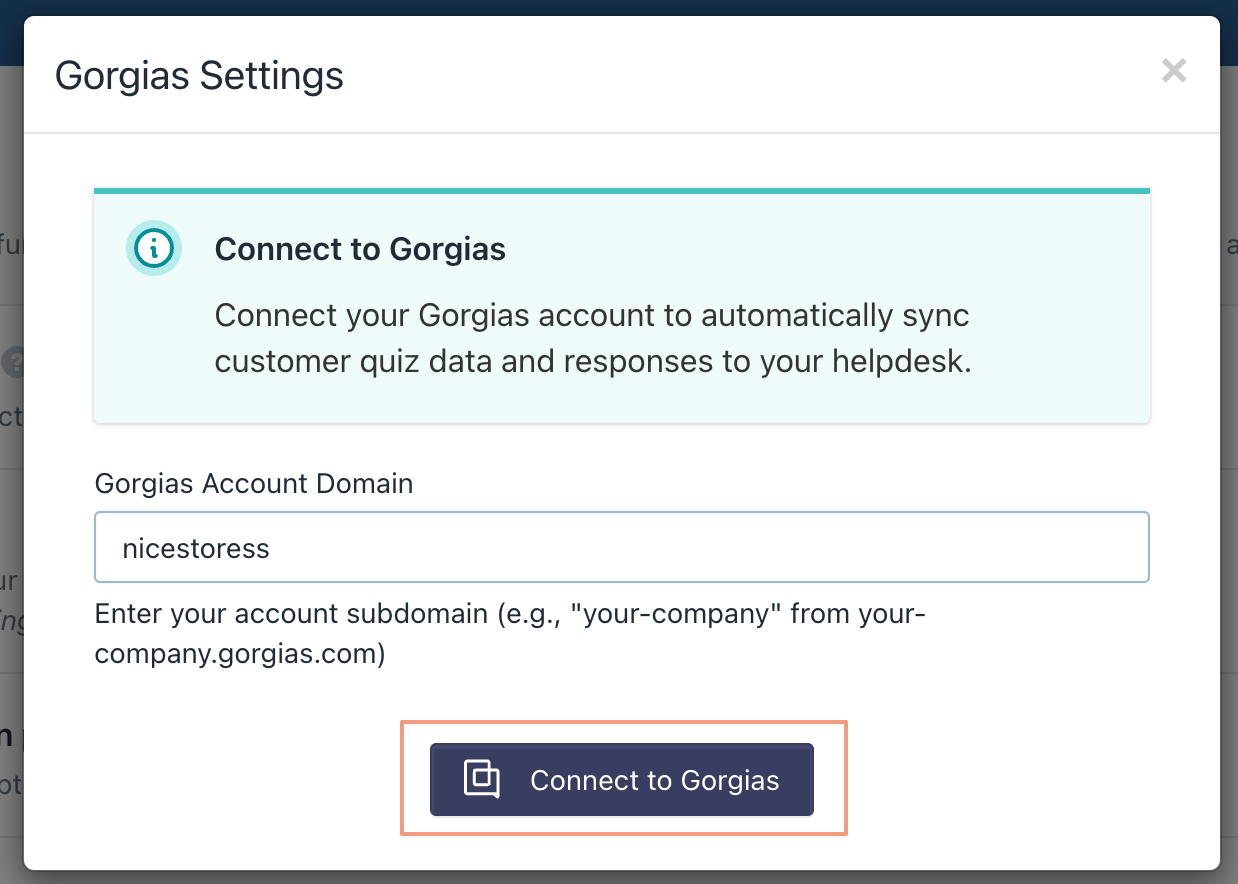

- Once successfully installed, there will be no HTTP integration created!
Viewing the Quiz Data in the Gorgias Customer Profile
Once a customer takes your quiz and submits their email or phone number, their profile will be created in Gorgias, and as soon as a ticket is created for that customer, the data will show in the widget: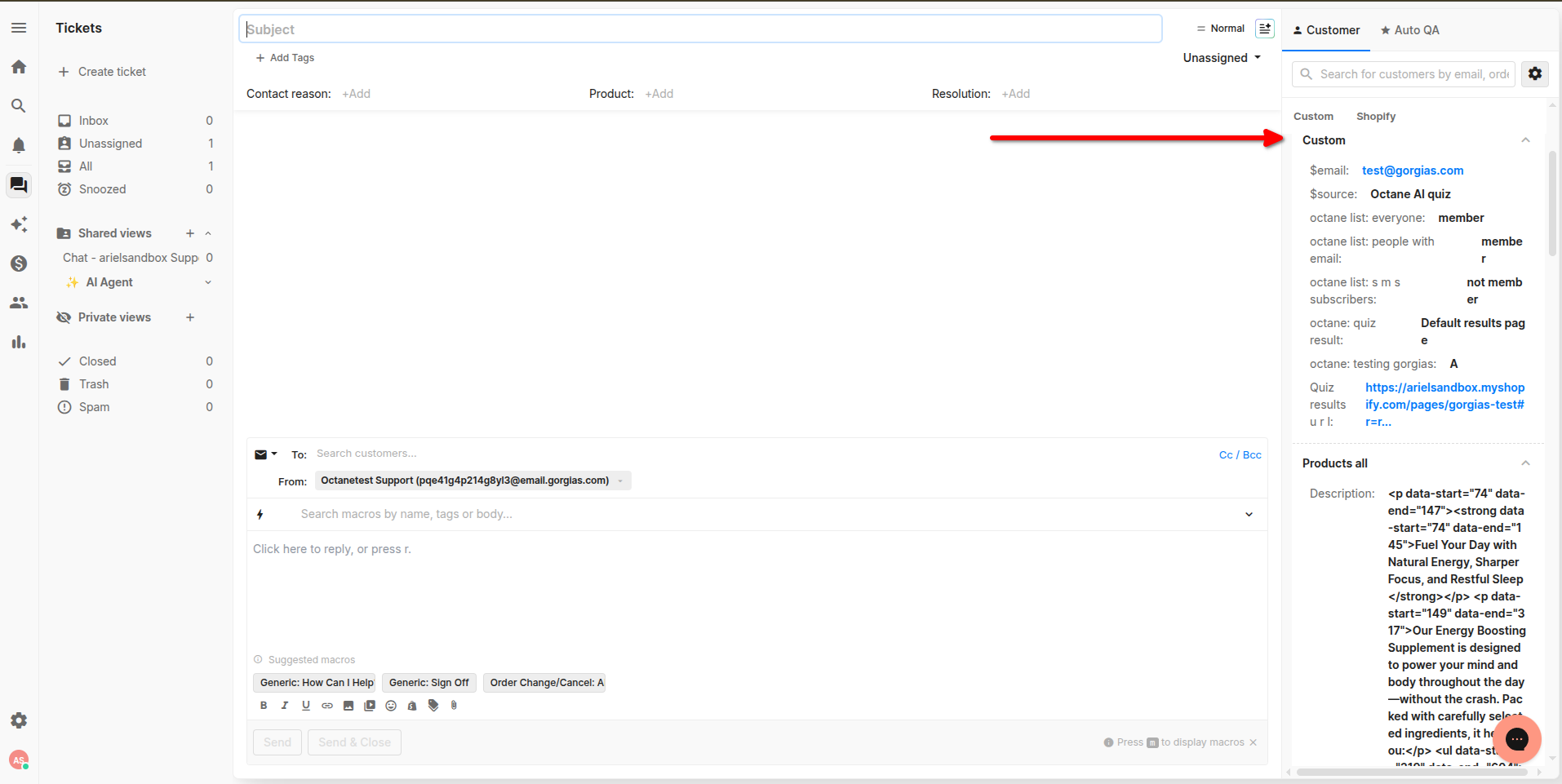
The data sent to Gorgias includes the quiz custom properties that are set up in the quiz's Connect tab, as well as the product information for products that were recommended by the quiz, such as the price, title, ID, etc.
How to Use the AI Quiz Generator
You can create the Quiz by going to Dashboard → Quizzes in Octane: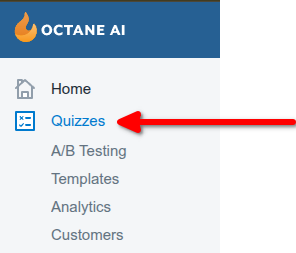
.png)
Once you have added all of the instructions, click on Create the quiz for me. Shortly after that, the quiz will be created according to the instructions. If you do not want to use the generator, you can select Start from scratch instead.
After the quiz has been created, you will need to add it to the Shopify Assistant in Octane. To do this, go to Quizzes → Shopify Assistant:.png)
Then, while having the editor open for any of your quizzes, go to the Publish tab → Add to Shopping Assistant:.png)
This will automatically add the quiz to the Shopping Assistant and will be shown on your website, and you can customize it by following these steps.
Once you are inside the Shopping Assistant editor, you will need to enable it as well:.png)
While on your website, customers can utilize the Shopping Assistant and the quiz that was created in Octane, and receive product recommendations, after which that data will be shown in the Gorgias widget:.png)
.png)
