
Import and export Help Center articlesUpdated 2 months ago
Your Help Center is most useful when it's full of answers — and you don't have to write every article from scratch. You can import articles in bulk from a CSV file or migrate content directly from another platform like Zendesk, HelpDocs, Re:amaze, or Intercom.
Exporting articles isn't supported in Gorgias, but our support team can help if you need a copy of your data.
Import Help Center articles
Articles can be written and formatted in a CSV file and uploaded to your Help Center. This makes auditing, updating, and managing Help Center content quick and easy.
If you're migrating from Zendesk, HelpDocs, Re:amaze, or Intercom, you can import your articles directly without a CSV.
To get started, download the CSV template.
Steps
Go to Settings -> Channels -> Help Center -> your Help Center -> Articles.
If your Help Center is empty, click on Import Content or, if you have articles in your Help Center, click the import icon
 .
.Add your CSV by dragging and dropping it or clicking browse.
Click Import File.
-9b71e308-9667-4995-9586-22d547474b64.png)
Map the column headers to the correct Gorgias field.
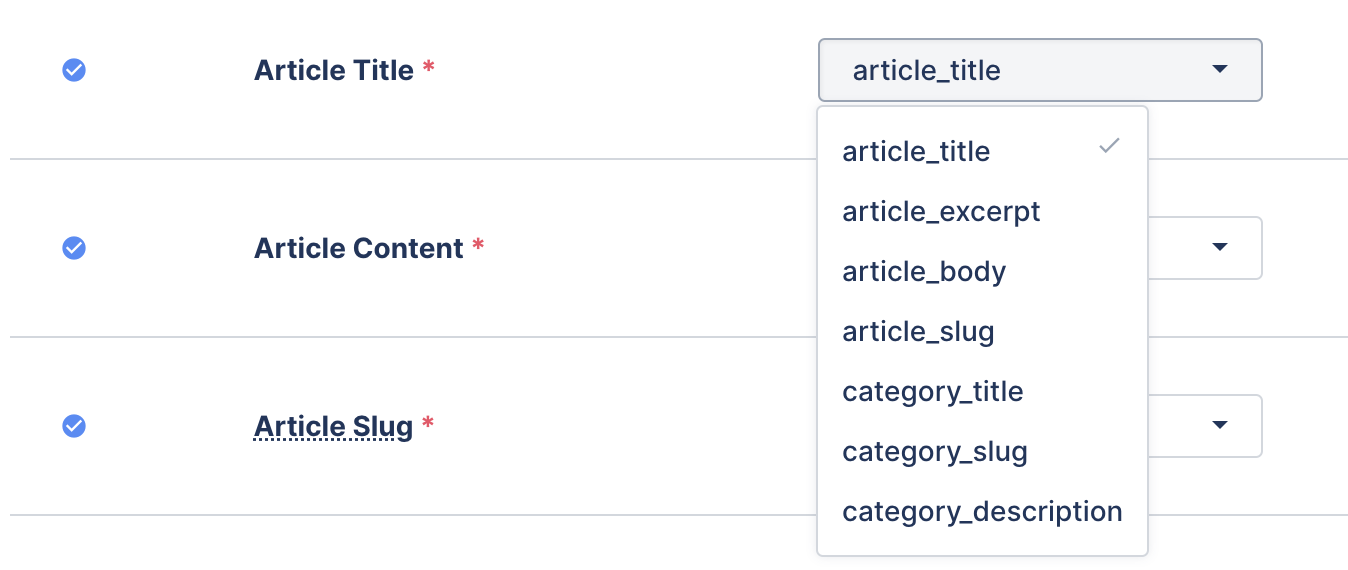
Click Confirm Import — your articles will begin importing.
FAQs
Why do I have to map the column headers to Gorgias fields?
Each column header in your CSV file corresponds to a specific piece of information, while Gorgias fields represent the article settings in your Help Center.
You need to map each column header to the appropriate field so your CSV data imports correctly — this is especially important when using CSV files from third-party sources, as they may use different names for article settings such as title, slug, or category.
In the example below, you can see how to map the column headers to their corresponding fields. Note that the category_title header in column D should be mapped to the category field in Gorgias.
Why did I run into errors with my upload?
- If a column is used for mapping to a field, make sure it doesn't contain any blank cells — this is the most common cause of upload failure.
- Make sure all the mandatory fields are selected with the correct column.
- For optional fields, if your file doesn't have a matching column, choose Auto-generate when possible (for Article Excerpt and Category Slug). If no auto-generation is available (for Category Name and Category Descriptions), leave those fields unselected.
- If you're uploading your own Article Slug or Category Slug, make sure it doesn't contain any special characters like $#%&^*.
Export Help Center articles
Help Center articles can't be exported directly from Gorgias. If you need to export your Help Center data, email [email protected] for help.
